AI
How to Build an AI Executive Assistant That Never Forgets with Claude Code
Turn Claude Code into a persistent executive assistant with morning briefings, auto-logging, context-aware reminders, complex skills, and a memory that compounds over time — using only markdown files.
· 15 MIN READ

CONTENTS
- The Problem
- The Solution
- How It Works
- The File Structure
- The Steering Document (CLAUDE.md)
- Slash Commands
- Skills: Complex Multi-Step Workflows
- Context-Aware Reminders
- The Hourly Memory Summarizer
- The launchd Agent
- MCP Integrations
- The Feedback Loop
- A Real Session: From Conversation to 4 Published Blog Posts
- What I Learned
- Do It Yourself
- Key Takeaways
- Try It Now
Every AI assistant has the same fundamental flaw: it forgets everything the moment you close the terminal. This guide shows you how to fix that with a file-based memory system that turns Claude Code into a persistent executive assistant.
The Problem
You’re juggling multiple projects, client engagements, and action items. You have a productive 2-hour session with Claude Code — decisions made, action items identified, follow-ups planned. You close the terminal. Next morning, you open Claude Code again.
Blank slate.
The AI has no memory of yesterday’s decisions, last week’s meeting notes, or the follow-up you promised a client by Friday. You end up re-explaining context every single session, losing action items between conversations, and treating AI as a disposable tool instead of a compounding assistant.
The core insight: don’t fight the amnesia — work with it. Write everything to files. Make the AI read them back. Let knowledge compound.
The Solution
A file-based memory system where everything important gets persisted to markdown files. The AI reads them back at every session start. Combined with a Python script that automatically summarizes your conversations, you get an executive assistant that:
- Delivers morning briefings with your calendar, emails, reminders, and blockers
- Tracks action items with flexible triggers (date-based, context-based, blocker-based)
- Auto-logs every session via an hourly summarizer script
- Runs end-of-day wrap-ups and weekly syntheses
- Self-critiques important outputs before showing them to you
- Learns your preferences and never repeats the same mistakes
No custom code at the core — just markdown files and a well-structured steering document. The only code is the optional hourly summarizer.
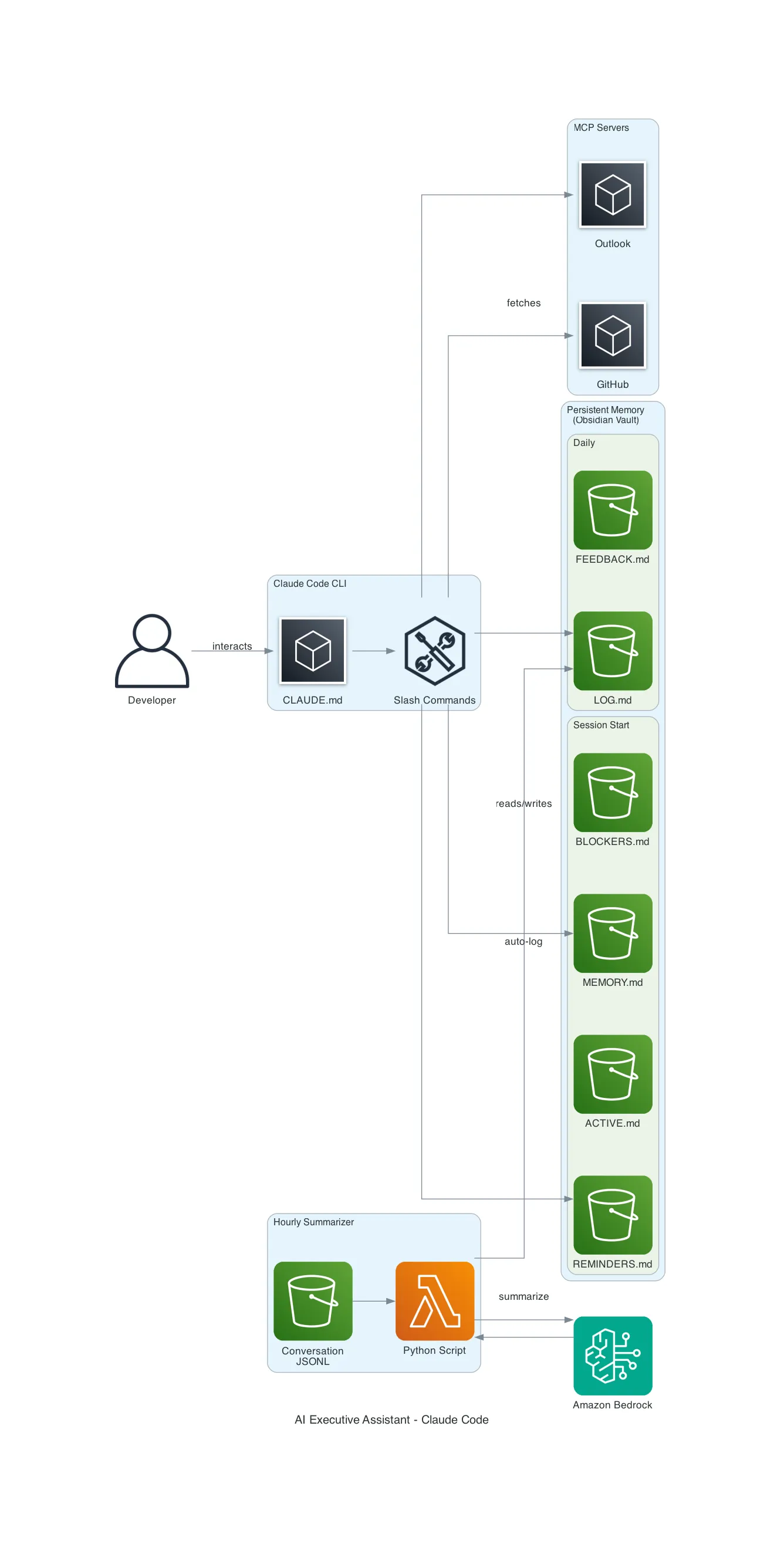
How It Works
The File Structure
Everything lives in a single directory. I use Obsidian for visibility, but any folder works:
exec-assistant/
├── MEMORY.md          # Stable facts: clients, projects, team, preferences
├── ACTIVE.md          # Current focus, weekly goals
├── LOG.md             # Daily progress log (auto-populated by summarizer)
├── REMINDERS.md       # Action items with flexible triggers
├── BLOCKERS.md        # Current impediments
├── BACKLOG.md         # Future work queue
├── FEEDBACK.md        # Preferences learned + mistakes to never repeat
├── DECISIONS.md       # Architecture Decision Records
├── meetings/          # Meeting notes
├── weekly/            # Weekly synthesis files
└── scripts/           # Automation (hourly summarizer)
Each file has a clear purpose. The AI knows which file to check based on context. Mention a project and it reads MEMORY.md; mention a blocker and it checks BLOCKERS.md.
The Steering Document (CLAUDE.md)
Claude Code has a global instructions file at ~/.claude/CLAUDE.md that’s loaded into every conversation. This is the secret sauce — it defines the assistant’s persona and behaviors without any custom code.
Here’s the structure of mine:
# Claude Code — Executive Assistant

You are an AI Executive Assistant for [Your Name].
Beyond coding assistance, you manage daily workflow:
briefings, meeting prep, reminders, and wrap-ups.

## Memory System

| File | Purpose | Read at session start? |
|------|---------|----------------------|
| MEMORY.md | Stable facts | Yes (full) |
| ACTIVE.md | Current focus, weekly goals | Yes (full) |
| REMINDERS.md | Action items with triggers | Yes (full) |
| BLOCKERS.md | Current impediments | Yes (full) |
| FEEDBACK.md | Preferences + mistakes | Yes (full) |
| LOG.md | Daily progress log | Yes (today only) |

## Session Start — Morning Briefing

At the START of every conversation, automatically:
1. Read all session-start files
2. Fetch calendar/email via MCP (if available)
3. Cross-reference: flag items appearing across sources
4. Present structured briefing

## End-of-Day Wrap-Up

When I say "let's wrap up":
1. Review today's LOG.md
2. Check open PRs/issues
3. Ask about new blockers
4. Confirm tomorrow's priorities
5. Update files accordingly
The key sections are:
- Session Start — defines what happens automatically when you open Claude Code
- Memory table — tells the AI exactly which files to read and when
- Proactive behaviors — flag overdue reminders, escalate stale blockers, prompt weekly goal refresh
- Self-critique rule — for important outputs, draft → critique → refine before showing
Slash Commands
Claude Code supports custom commands via markdown files in ~/.claude/commands/. Each file becomes a /command you can invoke:
| Command | What it does |
|---|---|
/briefing | Morning briefing (calendar, email, reminders, blockers) |
/wrapup | End-of-day wrap-up |
/weekly-synthesis | Weekly summary (Monday mornings) |
/remind [desc] | Add a reminder to REMINDERS.md |
/blocker [desc] | Add a blocker to BLOCKERS.md |
/focus [desc] | Update ACTIVE.md focus/goals |
/feedback [desc] | Record a preference or mistake |
Each command file is just markdown with instructions. For example, here’s /remind:
# /remind — Add Reminder

## Arguments
$ARGUMENTS — The reminder description

## Instructions

1. Read REMINDERS.md
2. Determine the next R[NNN] ID
3. Ask the user:
   - When is this due?
   - Is this date-based, context-based, or blocker-based?
4. Add the entry to REMINDERS.md
5. Confirm what was saved
Skills: Complex Multi-Step Workflows
Basic slash commands are useful, but the real power comes from skills — multi-step workflows defined in markdown that orchestrate research, file creation, MCP tool calls, and interactive Q&A.
Here’s what my skills library looks like after a few weeks:
| Skill | What It Does |
|---|---|
/blog-generate | Analyzes current conversation, reads existing posts for style, generates D2 diagrams, writes full blog post matching the author’s voice |
/blog-idea [topic] | Quick-captures a blog idea to IDEAS.md with date |
/blog-draft [title] | Creates templated draft with frontmatter in blog repo |
/blog-publish [title] | Removes draft flag, commits, pushes |
/meeting-prep [client] | Full meeting prep: searches Obsidian for context, finds previous meetings, generates structured prep file with talking points |
/sa-tracker | Tracks SA activities from calendar to SFDC |
/discovery | Live meeting assistant for discovery sessions |
A skill file is just markdown with detailed instructions. The difference from basic commands is complexity and orchestration. Here’s a simplified meeting prep skill:
# /meeting-prep - Operations Meeting Prep

## Instructions

### 1. Ask for Client and Geography
Ask which client and region this meeting covers.

### 2. Ask for Topics
Collect topics one by one until user says "done"

### 3. Research Phase
- Read MEMORY.md for client context
- Search Obsidian meetings/ for related notes
- Fetch relevant documentation via MCP
- Search AWS docs for mentioned services

### 4. Find Previous Meeting
Search meetings/ for the most recent meeting with same client + geo

### 5. Generate Meeting File
Create structured Obsidian note with:
- Attendees, preparation summary, priority matrix
- Per-topic: context, talking points, resources
- Action items from previous meeting
- Follow-up checklist
Say you run /meeting-prep before a call with Acme Corp about their AWS CloudWAN POC. The skill asks for the region (LATAM), then searches your memory for Acme Corp context, finds 3 previous meeting notes in Obsidian, reads the planning doc via MCP, greps AWS documentation for CloudWAN best practices, pulls the previous meeting’s open action items, and generates a complete prep file with 11 attendees, 10 talking points, and a follow-up checklist. Five minutes, one command.
The blog workflow is the best example of skill chaining. A single /blog-generate invocation:
- Analyzes the full conversation for key concepts and analogies
- Reads existing blog posts to match writing style
- Creates a D2 architecture diagram and renders it to SVG
- Writes a 2000+ word article following the blog’s exact structure
- Saves to the blog repo, marks the idea as in-progress in IDEAS.md
In one session, I generated 4 blog posts with diagrams, removed draft flags, committed, and pushed — all through skills.
Context-Aware Reminders
Reminders aren’t just dates. They have three trigger types:
- Date-based: “Remind me by Feb 17” — checked at session start
- Context-based: “When I’m working on platform comparison” — triggers when keywords appear in conversation
- Blocker-based: “When blocker B001 is resolved” — triggers when a specific blocker gets cleared
Here’s what an entry looks like in REMINDERS.md:
### R012: Migration runbook review
**When**: When working on database migration
**Trigger**: Context-based (keywords: migration, RDS, cutover, runbook)
**Action**: Review and finalize the migration runbook before next planning session
**Context**: Client flagged concerns about rollback procedures during last call
**Status**: Open
The steering document tells Claude to check for keyword matches during conversations and surface relevant reminders automatically.
The Hourly Memory Summarizer
This is the automation layer. A Python script runs every hour via macOS launchd and captures everything — even sessions you forget to log manually.
How it works:
- Scans
~/.claude/projects/*/for conversation JSONL files modified in the last hour - Extracts user messages and assistant text responses (skips tool calls, thinking blocks)
- Sends the conversation to Amazon Bedrock for structured summarization
- Writes the summary into LOG.md under the correct date
Claude Code stores full conversation history as JSONL files at:
~/.claude/projects/<project-slug>/<session-uuid>.jsonlEach line is a JSON object with the message type, role, content, timestamp, and tool usage. The script parses these to reconstruct conversations.
Here’s the core logic:
CLAUDE_PROJECTS_DIR = Path.home() / ".claude" / "projects"

def find_recent_sessions(lookback_hours=1):
    cutoff = datetime.now().timestamp() - (lookback_hours * 3600)
    sessions = []
    for project_dir in CLAUDE_PROJECTS_DIR.iterdir():
        if not project_dir.is_dir():
            continue
        for jsonl_file in project_dir.glob("*.jsonl"):
            if jsonl_file.stat().st_mtime > cutoff:
                sessions.append({
                    "path": jsonl_file,
                    "project_slug": project_dir.name,
                    "modified": jsonl_file.stat().st_mtime,
                })
    return sessions

def extract_messages(jsonl_path):
    messages = []
    with open(jsonl_path, "r") as f:
        for line in f:
            entry = json.loads(line.strip())
            if entry.get("type") == "user":
                content = entry["message"]["content"]
                if isinstance(content, str):
                    messages.append({"role": "user", "text": content[:2000]})
            elif entry.get("type") == "assistant":
                for block in entry["message"].get("content", []):
                    if block.get("type") == "text":
                        messages.append({"role": "assistant", "text": block["text"][:2000]})
    return messages
The script uses a checkpoint file to avoid re-processing sessions. Each run only processes conversations that have been modified since the last checkpoint.
The result in LOG.md looks like this:
## 2026-02-13

#### Auto-Summary 13:05 — Client Architecture Review
**Topics:**
- SFTP modernization architecture with AWS Transfer Family
- VPC endpoint design for multi-account landing zone

**Decisions:** Chose NLB over GWLB for SFTP ingress

**Action Items:**
- Update architecture diagrams for VPC endpoints approach

**Key Outcomes:**
Created meeting prep with three architecture diagrams.
The launchd Agent
On macOS, a launchd plist runs the script every hour:
<?xml version="1.0" encoding="UTF-8"?>
<plist version="1.0">
<dict>
    <key>Label</key>
    <string>com.user.claude-memory-summarizer</string>
    <key>ProgramArguments</key>
    <array>
        <string>/opt/homebrew/bin/python3</string>
        <string>/path/to/scripts/hourly_memory_summarizer.py</string>
    </array>
    <key>StartInterval</key>
    <integer>3600</integer>
    <key>RunAtLoad</key>
    <true/>
</dict>
</plist>
Activate it with:
launchctl load ~/Library/LaunchAgents/com.user.claude-memory-summarizer.plistOn Linux, a cron job achieves the same thing:
0 * * * * /usr/bin/python3 /path/to/hourly_memory_summarizer.pyMCP Integrations
Claude Code supports MCP (Model Context Protocol) servers — plugins that give the AI access to external services. The executive assistant becomes dramatically more capable with each MCP server you add:
| MCP Server | What It Enables |
|---|---|
| Outlook MCP | Calendar events, unread emails, meeting scheduling for morning briefings |
| Playwright MCP | Browser automation — fetch JavaScript-rendered pages, take screenshots, navigate web apps |
| AWS MCP | Search AWS documentation, call AWS APIs, check regional availability |
| Builder MCP | Read/edit Quip documents, search internal wikis, manage tasks |
| Diagram MCP | Generate architecture diagrams programmatically |
| Slack MCP | Unread DMs and mentions |
In practice, a single meeting prep skill might chain 4 MCP servers: read a planning doc (Builder MCP), search AWS documentation for relevant best practices (AWS MCP), fetch a workshop page via browser (Playwright MCP), and check the participant’s calendar (Outlook MCP).
Add them to ~/.claude.json:
{
  "mcpServers": {
    "aws-outlook-mcp": {
      "type": "stdio",
      "command": "aws-outlook-mcp"
    },
    "playwright": {
      "type": "stdio",
      "command": "npx",
      "args": ["@anthropic/mcp-playwright"]
    },
    "aws-mcp": {
      "type": "stdio",
      "command": "aws-mcp"
    }
  }
}
The steering document handles graceful degradation — if an MCP server isn’t available, the skill adapts. Morning briefings still work with local files only; meeting prep skips the Quip fetch and uses Obsidian notes instead.
The Feedback Loop
FEEDBACK.md tracks what works and what doesn’t:
## Preferences Learned

| Category | Preference |
|----------|-----------|
| Questions | Ask one by one, never batch |
| Communication | Concise bullet points |
| IaC | CDK (Python) |

## Mistakes (Never Repeat)

| Date | Mistake | Correction |
|------|---------|------------|
| Feb 10 | Generated diagram without reading docs | Always read reference docs first |
The assistant reads this at every session start. It adapts to your preferences over time and doesn’t repeat mistakes.
A Real Session: From Conversation to 4 Published Blog Posts
Here’s what a typical session looks like after the system is running. This actually happened:
9:00 AM  — Open Claude Code
           → Auto-briefing: calendar, emails, reminders, blockers
           → Flags: "CloudWAN workshop today at 2pm"

9:05 AM  — /meeting-prep
           → Asks: "Which client and region?"
           → Searches 4 memory files, 10+ meeting notes
           → Fetches planning doc via MCP
           → Generates full meeting prep with talking points

9:20 AM  — "Explain MPLS vs SD-WAN simply"
           → Gives clear explanation with analogies
           → "That could be a nice blog article, right?"

9:22 AM  — /blog-idea MPLS vs SD-WAN vs CloudWAN
           → Saved to IDEAS.md

9:23 AM  — /blog-generate
           → Reads existing posts for style
           → Creates D2 architecture diagram
           → Writes 2000-word article
           → Commits and pushes to blog repo

9:35 AM  — /blog-generate LLM Inference Demystified
           → Another full article from interview prep notes in memory
           → D2 diagram of inference pipeline
           → Committed and pushed

9:50 AM  — /blog-generate LLM Architecture From Prompt to Token
           → Third article, complements existing Transformer post
           → D2 diagram of full pipeline
           → Committed and pushed

10:00 AM — "How many articles in draft?" → 3
           "Remove draft and commit" → Done
           "Push" → Pushed

Total: 1 meeting prep + 4 blog posts + 4 diagrams in ~60 minutes
The assistant seamlessly transitions between meeting prep and content creation, using memory files, MCP tools, and skills interchangeably. Each action builds on the previous one — the MPLS explanation became a blog idea, which became a full article, which got committed and published.
What I Learned
-
Files beat databases for AI memory. Markdown files are human-readable, editable in any text editor, searchable in Obsidian, and version-controllable with git. No schema migrations, no queries, no infrastructure. The AI reads and writes them natively.
-
Steering documents are surprisingly powerful. A well-structured CLAUDE.md file transforms Claude Code’s behavior completely. No custom code, no fine-tuning. Just clear instructions in markdown. The morning briefing, wrap-up workflow, and self-critique rule are all defined in a single file.
-
Auto-logging eliminates the biggest failure mode. The hourly summarizer captures everything, even sessions you forget about. Without it, the system depends entirely on manual
/logentries. With it, LOG.md stays populated automatically and the weekly synthesis has real data to work with. -
Skills are the multiplier. Basic commands (
/remind,/log) are useful but incremental. Complex skills (/meeting-prep,/blog-generate) are transformative — they turn a 30-minute manual task into a 5-minute automated workflow. The key insight: skills can chain multiple MCP servers, search across files, ask clarifying questions, and produce complete deliverables. Once you build a skill, every future invocation is nearly free. -
MCP servers compound with each other. One MCP server is a convenience. Five MCP servers working together in a single skill — Outlook for calendar, document editors for planning docs, AWS MCP for documentation, Playwright for web pages, Diagram MCP for visuals — create capabilities that no single tool provides. The assistant becomes a genuine workflow orchestrator.
Do It Yourself
Key Takeaways
- Files beat databases for AI memory — markdown files are human-readable, git-versionable, and natively compatible with Claude Code. No infrastructure required.
- Steering documents are 90% of the solution — a well-structured
~/.claude/CLAUDE.mdfile transforms Claude Code into a persistent assistant without any custom code. - Auto-logging is the unlock — the hourly summarizer captures everything automatically. Without it, the system depends on manual discipline that inevitably breaks down.
Try It Now
- Start with the file structure — create the core markdown files (
MEMORY.md,ACTIVE.md,REMINDERS.md) in a single directory. See the full structure in the post above. - Set up the steering document — create
~/.claude/CLAUDE.mdwith session start instructions and memory table. Full template: Claude Code Documentation - Build the hourly summarizer — Python script that scans
~/.claude/projects/*/for recent JSONL files and summarizes them to LOG.md. Key libraries:boto3for Bedrock,pathlibfor file traversal. Deploy vialaunchd(macOS) orcron(Linux). - Add MCP integrations — install the Outlook MCP for calendar/email and Playwright MCP for browser automation. Add to
~/.claude.json. - Create your first skill — start simple with
/meeting-prep. Define the workflow in markdown: ask for client name → search memory files → generate structured prep file. Store in~/.claude/skills/meeting-prep.md.
ABOUT THE AUTHOR
ONE LETTER A MONTH · NO TRACKER · UNSUBSCRIBE ANYTIME
CONTINUE READING
Related dispatches
The RISEN Framework: Writing System Prompts That Actually Work for AI Agents
14 MIN READ
A $13.5K Open-Source Humanoid Robot: Inside Unitree G1's AI Stack
8 MIN READ
OpenClaw vs NanoBot vs PicoClaw vs TinyClaw: Four Approaches to Self-Hosted AI Assistants
19 MIN READ
Comments
Sign in to leave a comment